The fastest way to import bank transactions automatically is to link your bank through a built-in connector for ongoing syncing, or a third-party scheduled sync when your bank isn’t supported natively. File imports (CSV, OFX, QFX, or PDF) work best for backfilling old history or when a connector breaks. You’ll need your online banking login and possibly a multi-factor authentication step ready before you start. If your sync stalls later, the troubleshooting steps below will get you back on track.
TL;DR:
- Bank connectors provide near-complete automation but depend on ongoing compatibility with your bank’s website and security updates.
- Manual file imports, though less automatic, reliably handle past data and unsupported banks without risking synchronization failures.
- Third-party scheduled sync tools enable multi-account aggregation with flexible scheduling but require extra setup for privacy-conscious users.
- Reauthentication is the most common fix for stopped imports, often caused by password changes, MFA prompts, or bank platform updates.
- Regular balance reconciliation and secure credential management are essential to maintain data accuracy and protect privacy in automated banking imports.
Table of Contents
- What are the main ways to import bank transactions automatically?
- How do you set up an automatic bank connection?
- How do you import transactions from CSV, OFX, QFX, or PDF files?
- Can third-party connectors and self-hosted tools automate more?
- Why do automatic bank imports stop working, and how do you fix it?
- How do you keep imported bank data private and accurate?
- Why automating transaction imports matters for individuals and small businesses
- Get your imported transactions working for you, not just sitting in a list
- Sources
What are the main ways to import bank transactions automatically?
You have three real options, and each one trades off automation against control.
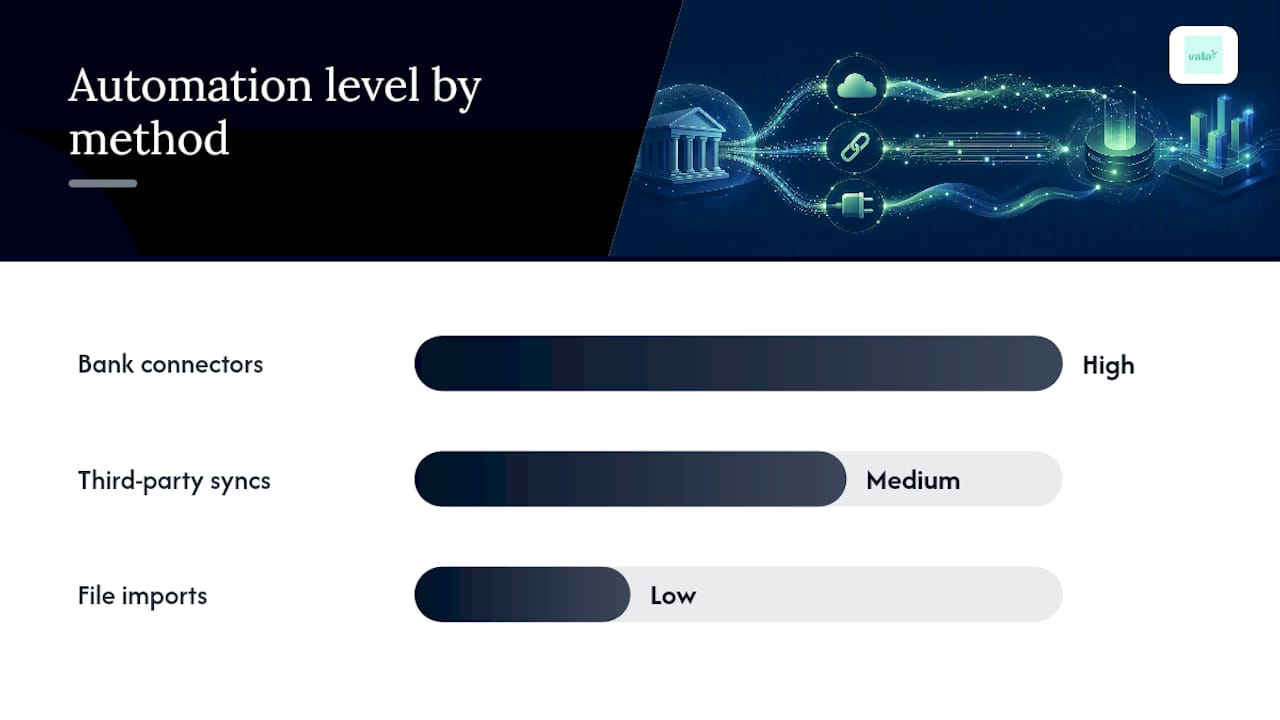
Bank connectors link directly to your financial institution using your online banking credentials, then pull new transactions on a schedule without you touching anything again. This is the closest thing to true automation. The tradeoff is that you’re dependent on the connector staying compatible with your bank’s website, and any password or security change on the bank’s end can interrupt the flow.
File imports mean exporting a CSV, OFX, QFX, or PDF statement from your bank and uploading it yourself, or through a folder-watching script. They’re not automatic in the moment-to-moment sense, but they’re the most reliable fallback when a bank isn’t supported or a connector has failed.
Third-party scheduled syncs sit between the two. Tools built specifically for this job can pull transactions on a set cadence and push them into a spreadsheet or accounting system, even when your core software’s native connector can’t reach that bank.
- Everyday tracking: use a connector for automatic, hands-off ingestion.
- Unsupported banks or backfills: use file imports.
- Extra scheduling control or multi-tool aggregation: use a third-party sync.
How do you set up an automatic bank connection?
Getting connected takes ten minutes if you have the right information ready.
Prerequisites to gather first:
- Your online banking username and password (never your card PIN).
- Access to your MFA method, since most banks now text or email a one-time code during setup.
- The account numbers or last four digits for each account you want to link, so you can match them correctly if you have several accounts at the same bank.
- A rough sense of how far back you need transaction history, in case the connector’s backfill doesn’t reach far enough.
Steps to connect:
- Choose “add account” or “link bank” in your finance app and search for your institution by name.
- Enter your credentials and complete any MFA prompt when asked.
- Select which specific accounts to import, since one login often covers checking, savings, and credit cards together.
- Confirm the account nicknames or numbers match what you see on your actual bank statement, so nothing gets mapped to the wrong account.
- Let the initial sync run. Connectors commonly backfill history in batches, and how far back that history reaches varies by bank and provider, sometimes taking longer than a single session for a full pull.
Once transactions land, spot-check a handful against your actual bank statement, categorize anything left uncategorized, and set a low-balance or large-transaction alert if your app supports one.
Pro Tip: Do your first sync a day before you actually need clean numbers. That gives the backfill time to finish and gives you a chance to fix any mapping issues before you rely on the data for a budget decision.
How do you import transactions from CSV, OFX, QFX, or PDF files?
File imports are the manual fallback that never breaks, as long as you follow a few rules.
Most software expects four columns at minimum: date, description, amount, and an account identifier. OFX and QFX files carry this structure automatically since they’re built for financial data. CSV files need you to check the columns yourself, and PDFs almost always require a parsing step or manual reentry since they’re built for reading, not importing.
- Log into your bank’s website and export the statement in whichever format your software prefers, usually CSV or OFX.
- Open the file and check that dates and amounts follow a consistent format. A date read as month/day in one file and day/month in another is a common source of scrambled records.
- Upload the file into your software and use its field-mapping screen to match each column to date, description, amount, and account, previewing the results before you confirm.
- Pick a date range that does not overlap with transactions you’ve already imported. CSV imports generally do not deduplicate on their own, so overlapping ranges create duplicate entries you’ll have to clean up by hand.
For recurring file imports, some small businesses set up an SFTP folder or a scheduled script that watches a download folder and imports new files automatically, which removes the manual upload step while keeping the reliability of file-based data.
Can third-party connectors and self-hosted tools automate more?
Yes, and they solve two different problems: convenience for aggregating multiple banks, and privacy for people who don’t want their credentials sitting with a third party.
Dedicated sync tools built for spreadsheets or budgeting apps typically offer:
- Scheduled runs on an hourly or daily cadence rather than only on app launch.
- Field mapping so transaction data lands in the right spreadsheet columns automatically.
- Multi-account aggregation, pulling several banks into one destination at once.
BankSync’s own documentation describes exactly this pattern: scheduled feeds with configurable field mapping that push data into a spreadsheet on a recurring basis.
If privacy matters more than convenience, self-hosted or command-line tools are worth a look. Open-source projects can run imports through a script or cron job so your bank data never leaves your own machine, which some privacy-conscious users prefer over a hosted service holding their credentials. The tradeoff is setup effort. You’re managing the automation yourself instead of clicking “connect.”
Pro Tip: If you’re aggregating five or more accounts, watch for transaction caps or rate limits on free connector tiers. Hitting one mid-sync is a common reason imports appear to “stop” without any error message.
Why do automatic bank imports stop working, and how do you fix it?
Interrupted syncs are almost always one of four things: a changed password, a new MFA prompt, a change on the bank’s side, or a temporary outage at the connector.
Common causes:
- You changed your online banking password and the connector’s stored credentials are now stale.
- Your bank added a new MFA or security question step that the connector can’t answer automatically.
- The bank redesigned its login page or moved to a new banking platform, breaking the connector’s access.
- The connector service itself is having an outage, unrelated to your account.
Quick fixes, in order:
- Reauthenticate the connection with your current password and complete any MFA step it asks for.
- Check the app’s import log or connection status page. Most flag a specific account as “needs attention” rather than failing silently.
- If the account reconnects but is missing days of history, re-run a backfill or manually upload a CSV to cover the gap.
- Watch for duplicates after restoring a connection. Because reconnections sometimes re-pull a few days of overlapping data, reconcile that window against your account before trusting the totals.
Documentation from major platforms confirms this is expected behavior, not a bug: credential or security changes pause imports until you reauthenticate, by design, to protect your account.
If reauthentication doesn’t resolve it after two attempts, that’s your signal to pull the connection logs and contact support rather than keep retrying blind.
How do you keep imported bank data private and accurate?
Automation only helps if you trust the data it produces, so a few habits matter more than any single tool choice.
- Favor connectors that use tokenized, read-only access rather than ones that store your raw password, and understand how often they’ll ask you to reauthenticate.
- If you’re moving files manually, use a secure transfer method like SFTP and delete exported statements from your downloads folder once the import completes.
- Reconcile imported balances against your actual bank statement on a regular schedule, not just after setup.
- Rotate credentials periodically, especially after any breach notice from your bank, and re-link connectors afterward.
Pro Tip: Set a recurring 10-minute reconciliation check once a month. It’s the single habit that catches duplicate transactions and mapping errors before they distort a budget.
Why automating transaction imports matters for individuals and small businesses
Automating imports gives you back hours you’d otherwise spend on manual entry, and it gives you a clearer, real-time read on cash flow than a monthly bank statement ever could. The catch is that automation without regular reconciliation can quietly drift, especially after a large backfill or a reconnection that repeated a few days of data. Set it up, then check it.
— SaverStride
Get your imported transactions working for you, not just sitting in a list
A synced feed of transactions is only useful if something turns it into a clear picture of where your money actually goes. That’s a gap some personal finance apps address. Instead of leaving you to sort a raw import yourself, Some apps automatically categorize transactions, flag recurring subscriptions, and surface spending patterns to help users analyze their spending.
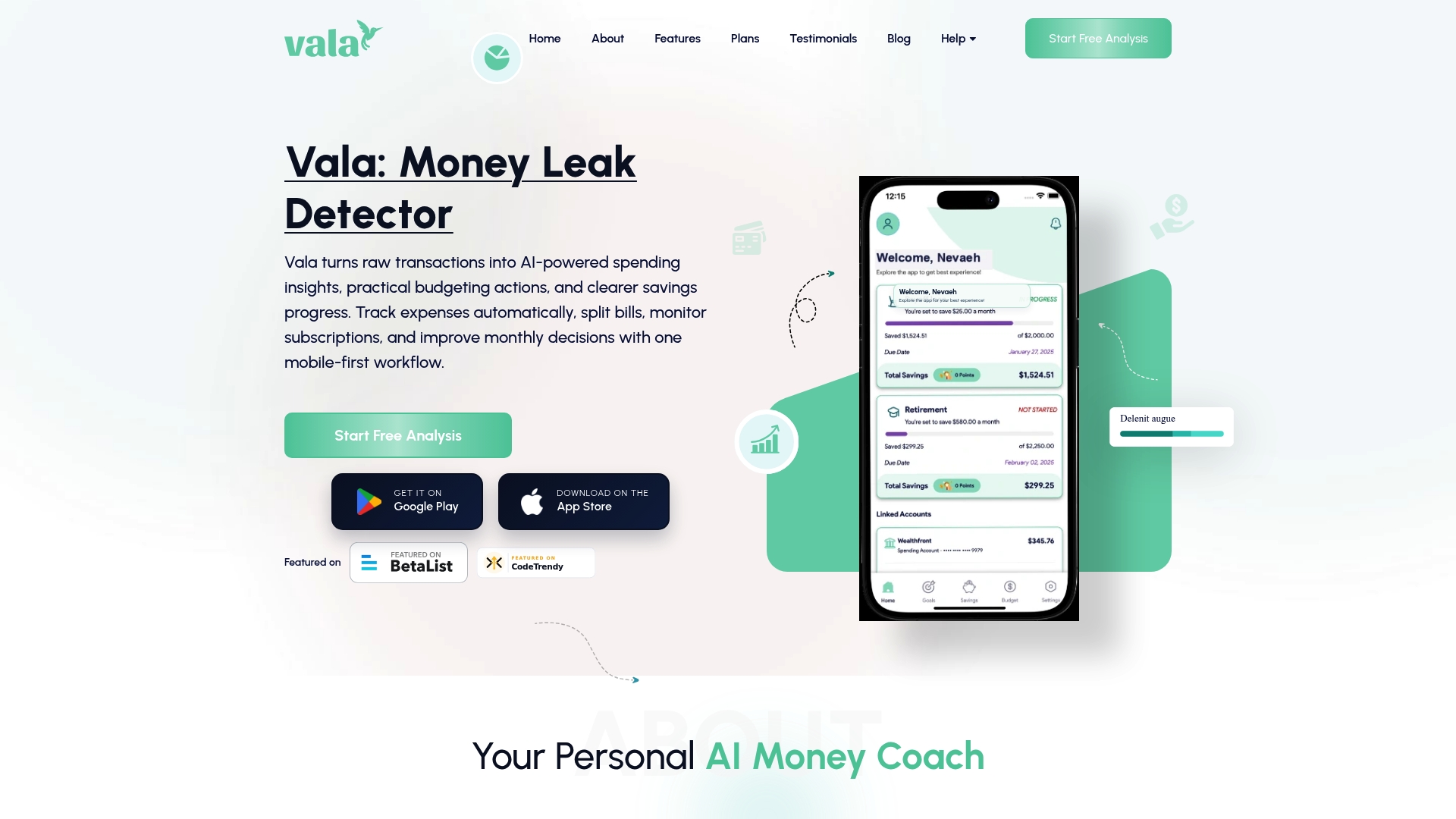
Some apps handle the math automatically for couples or small groups splitting shared costs, eliminating the need for separate spreadsheets. If you already use a spreadsheet-based sync or a connector for backfills, Vala’s secure bank integration is built to pick up right where that leaves off, turning imported data into an actual budget instead of a longer list. Try the personal finance app and see your categorized transactions the first time your accounts sync.
Sources
- Importing External Data in Beancount – Beancount Documentation
- Automatically import bank CSVs into Tiller | Tiller Help Center
- Denaun/quickynab
- BankSync docs: sync transactions